


I’m often asked: How to set up a small office network without hiring an expensive IT guy or wasting money on gear you don’t need. Honest answer? It’s not as complicated as it sounds. I once looked at a pile of cables, a router in its box, and two switches I wasn’t sure I needed – and realized I was completely lost. Three hours later everything was working fine.
Once you understand what each piece does, the logic clicks into place. Everything connects in a simple chain, and when that chain is complete – it just works. No magic. No mystery.
This guide is written for someone who is doing this for the first time. No IT experts. No slang. Clear, honest steps from people who have set up dozens of networks in offices of all sizes.
🏢 Why WiFi Alone Is Not Enough for a Real Office
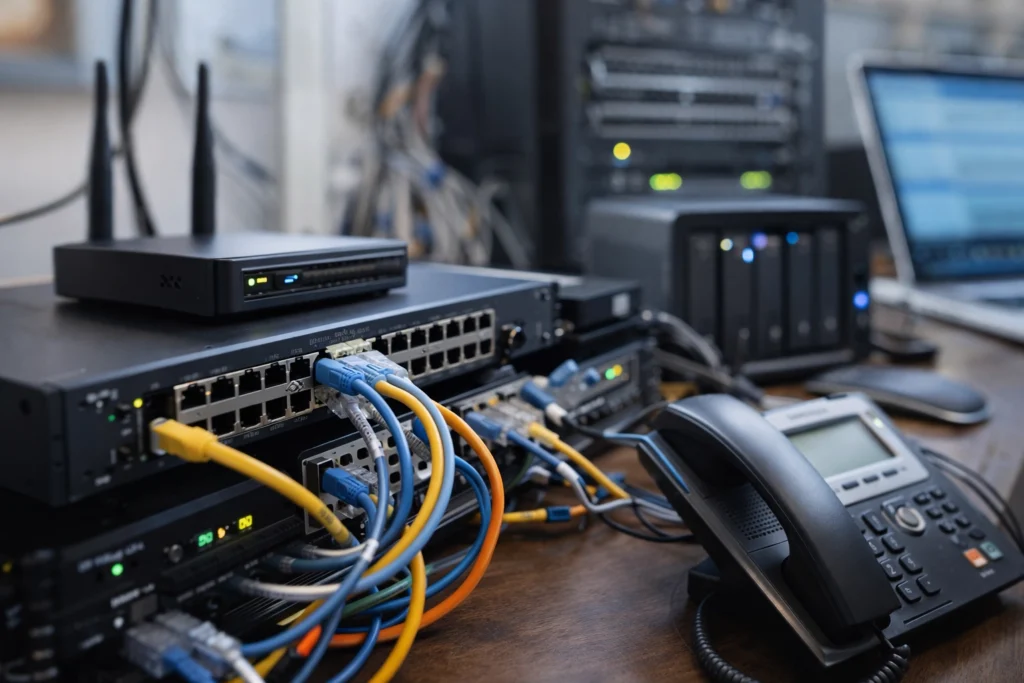
A properly networked team — fewer dropouts, faster file sharing, smoother calls
Many small offices run entirely on Wi-Fi. Someone bought a router, threw it in the corner, and connected everything wirelessly. It works fine for a while — until the team grows, the calls start coming in, and the printer stops responding mid-work.
WiFi is great for phones and laptops that move around. But desktop computers, printers, file servers, CCTV cameras — they don’t move. Cable those devices and you get a connection that’s three to four times faster, never drops mid-call, and doesn’t care how many people are connected at once.
A well-networked office uses both: wired for things that stay still, wireless for everything that moves. This combination is the foundation of a network that actually feels reliable.
🛒 What You Need to Set Up a Small Office Network — Full List
Don’t overthink this. For a 10-person office, you need four things — maybe five if the space is large. Here’s exactly what each one does and why it matters.
🚀 How to Set Up a Small Office Network — 6 Easy Steps
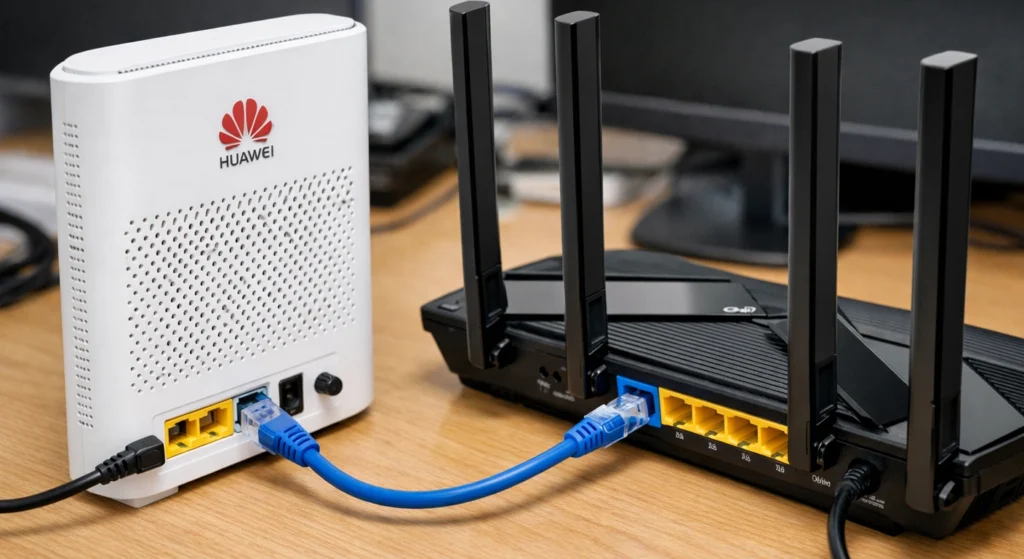
First cable — modem to router WAN port
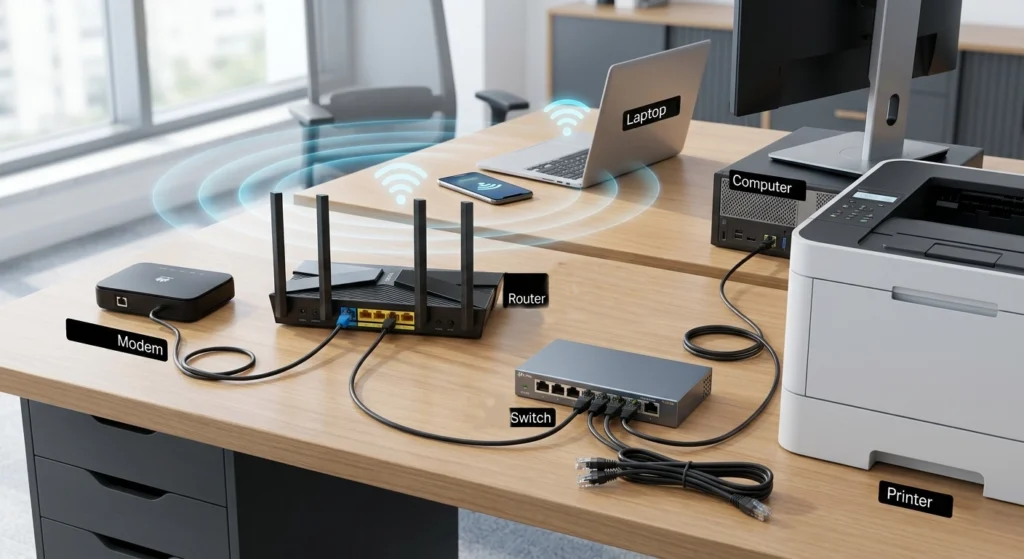
Switch extends your wired connections
Connect Modem to Router
Take one short ethernet cable and run it from your ISP modem into the WAN/Internet port on your router. This port is usually a different color — often blue or yellow. Power both on and give them about two minutes to fully boot. The router picks up the internet automatically — no configuration needed at this stage.
Connect Router to Switch
Run a Cat6 cable from any LAN port on the router into any port on your switch. It doesn’t matter which port on either side — any will work. Your switch is now an extension of the router. Every device you plug into the switch becomes part of your network instantly.
Run Cables to Every Fixed Device
Run Cat6 cables from the switch to each desk, printer, server, and fixed device. If you can route them through cable trays or behind skirting boards — great. If not, cable clips along the baseboard look clean enough. Just keep cables off the floor where people walk.
Log Into Your Router Settings
Open any browser and type 192.168.1.1 — or 192.168.0.1 if that doesn’t load. The default username and password are printed on the sticker on the back of your router. Log in. Change the WiFi name (SSID), set a strong password, and change the admin login from its factory default. Five minutes of work that matters a lot.
Create a Separate Guest WiFi Network
Almost every modern router lets you create a second WiFi network. Always do this. When a client or visitor asks for WiFi, you do not want them on the same network as your computers and file server. Guest networks give them internet access — completely isolated from everything else. Takes two minutes to set up.
Test Speeds on Every Device
Visit speedtest.net or fast.com on several devices — wired and wireless. Wired speeds should be close to your ISP plan. Walk around with a phone and check WiFi signal in every area. Any weak spots you find now — mark them. That’s where you’d add an access point later.
Place your router in the middle of the office — not inside a cabinet or tucked behind a wall. A slightly elevated position, like the top of a shelf, gives noticeably better WiFi across the entire room. Central placement genuinely makes a visible difference.
💰 Best Budget Gear to Set Up a Small Office Network
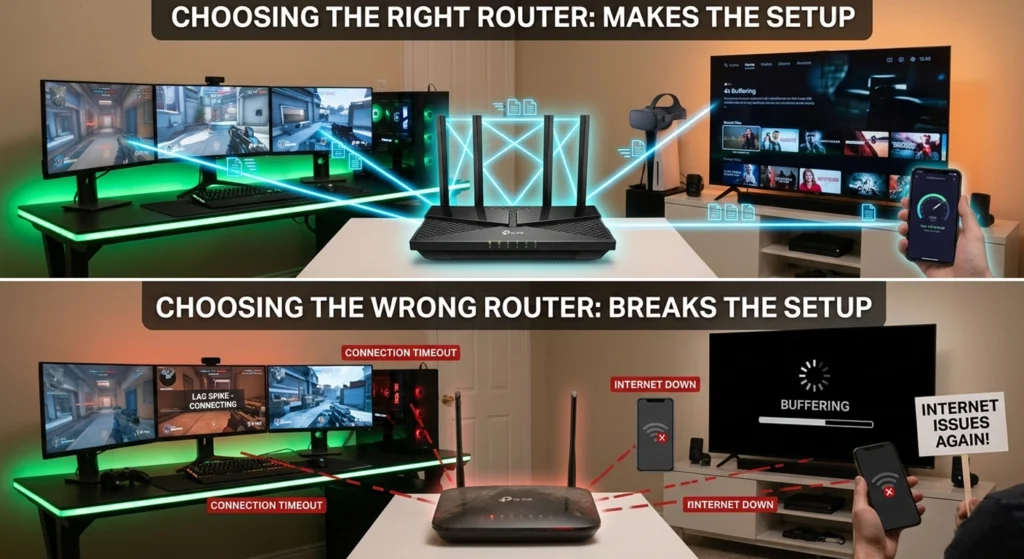
Router choice makes or breaks the whole setup
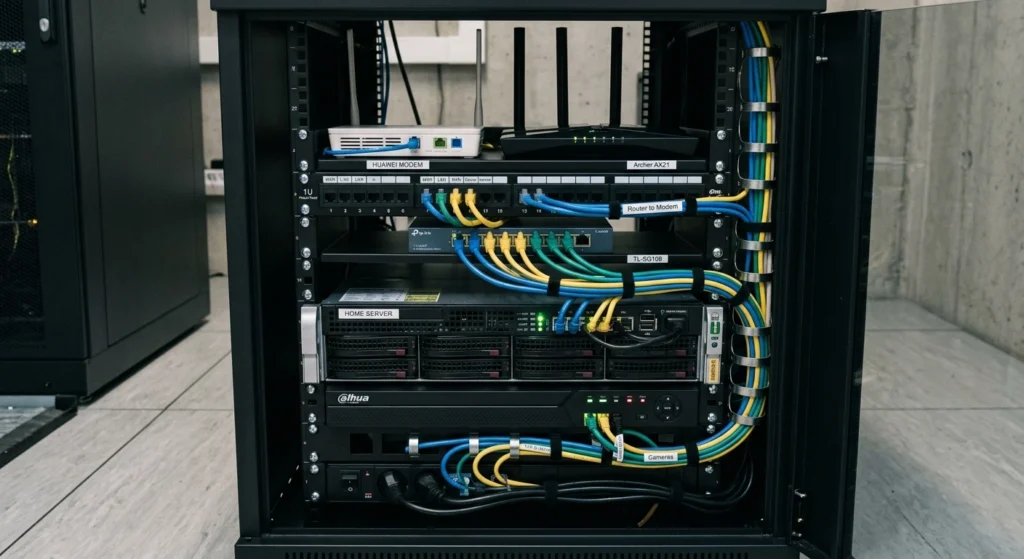
A tidy switch cabinet keeps cables under control
Here are some networking devices that are widely used in small offices because they are reliable, affordable, and easy to configure.

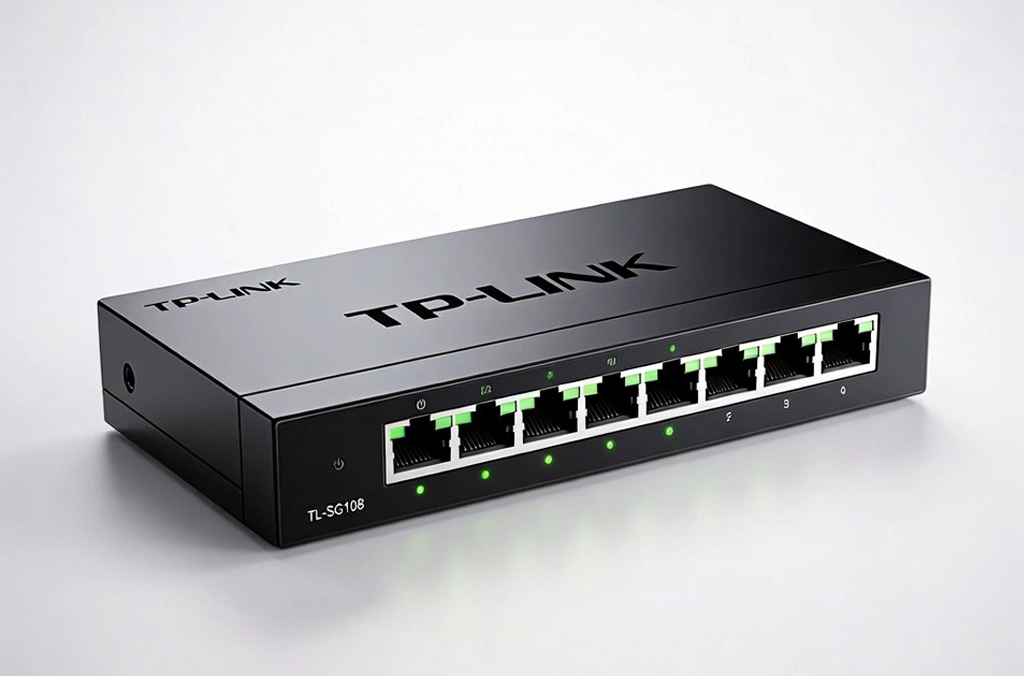
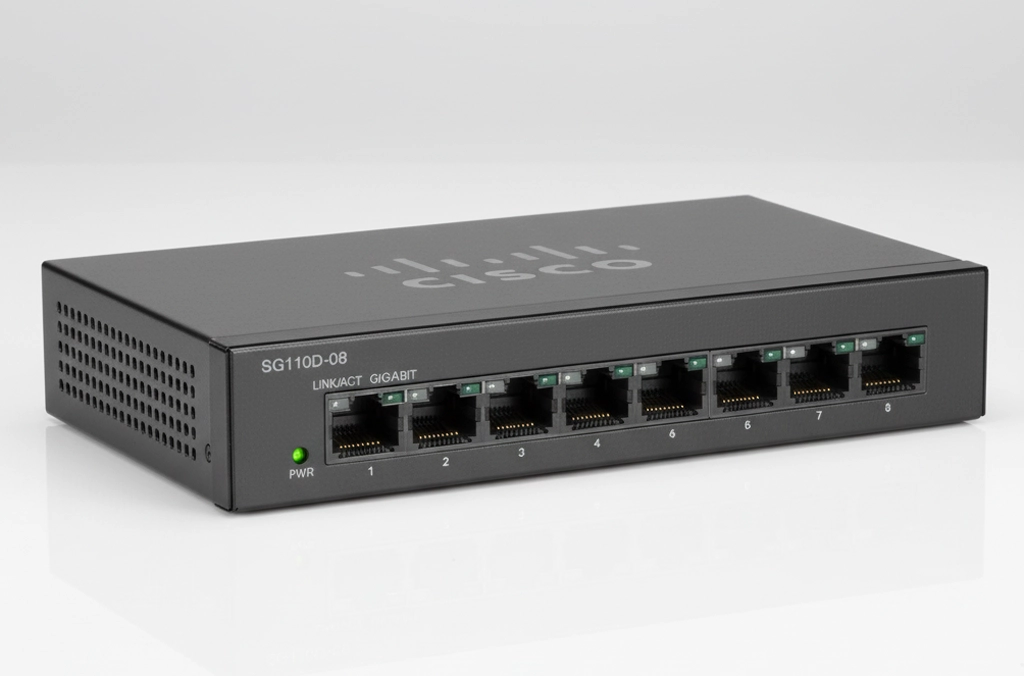
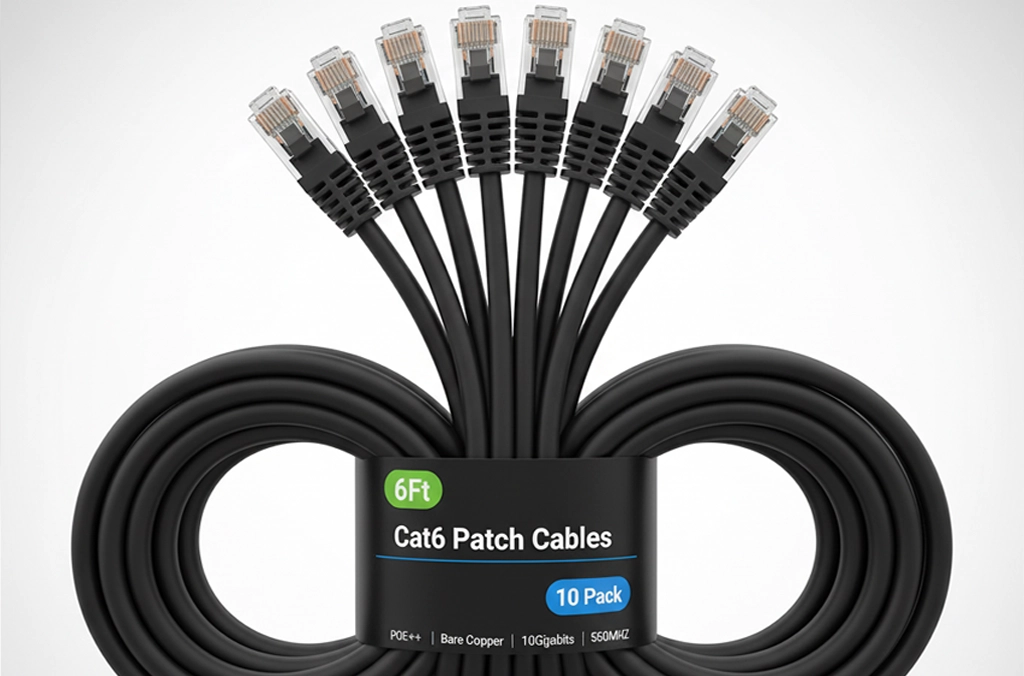
📊 All 5 Products — Side by Side
| Product | Type | Best For | Price |
|---|---|---|---|
| TP-Link Archer AX21 | WiFi 6 Router | Teams up to 20 | 🛒 Shop on Amazon |
| TP-Link TL-SG108 | 8-Port Switch | Budget setups | 🛒 Shop on Amazon |
| Cisco SG110-08 | 8-Port Switch | Long-term reliability | 🛒 Shop on Amazon |
| Cat6 Cable 6ft | Ethernet Cable | Every office | 🛒 Shop on Amazon |
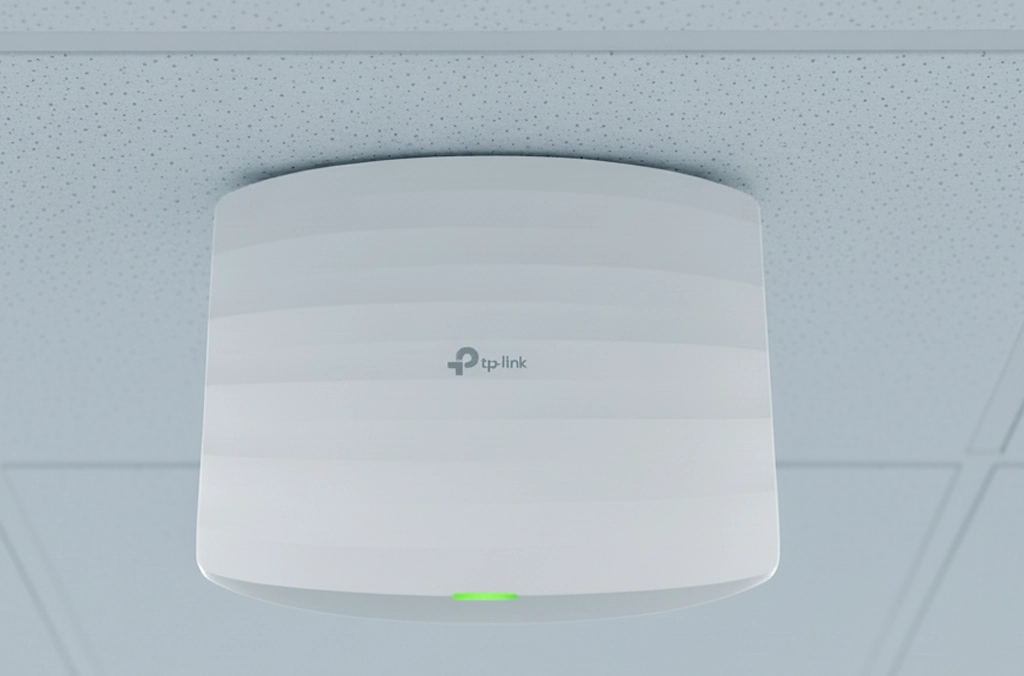
| TP-Link EAP225 | Access Point | Multi-room offices | 🛒 Shop on Amazon |
🔒 Security Rules for Your Office Network — Don’t Skip These

A running network is step one — a secure network is step two
Small offices get targeted specifically because their security is usually the weakest. These six things take about ten minutes total and close the most common gaps.
🛡️ Network Security Checklist
- 🔑Change the WiFi password and router admin password straight away. Factory defaults are published online — anyone who knows your router model can log in.
- 🔐Set WiFi encryption to WPA3, or WPA2-AES at minimum. WEP and TKIP were cracked years ago — never use those.
- 🌐Create a guest network. Visitors get internet only — fully isolated from your office files and devices.
- 🔄Turn on automatic firmware updates in your router settings. Security patches come out regularly — you don’t want to miss them.
- 📵Disable WPS in your router settings. The PIN method was broken by security researchers years ago and has never been fully fixed.
- 🧱Check that your router’s built-in firewall is switched on. It usually is by default — but verify it, especially if multiple people have accessed the admin page before.
Sixteen characters minimum. Mix upper and lower case, numbers, and symbols. Don’t use your business name, street address, or current year. Write it down somewhere secure — not on a sticky note stuck to the router.
❓ Questions People Always Ask
And that really is all there is to it. Once you know how to set up a small office network properly — the right router, a switch, Cat6 cables run to every fixed device, a strong password, and a guest network for visitors — the whole thing becomes very manageable. Most offices are fully running within an hour of unpacking the gear.
Start simple. Get the foundation right. Add access points or bigger switches only when the actual need comes up — not before. A network that works reliably is worth far more than one with features you don’t use.
Not Sure What Your Office Needs? We Can Help.
Our team at Wide Communication offers free, no-pressure advice on small office networking — from choosing the right gear to figuring out where everything goes. No sales pitch. Just straight help from people who do this every day.
✓ Budget-friendly advice
✓ Fast response
✓ Real people, not a chatbot
small office network setup
TP-Link Archer AX21
Cisco SG110 switch
Cat6 cable guide
gigabit switch small business
office WiFi setup
network security tips
TP-Link EAP225
Wide Communication